
How to Watch IPTV on Windows PC — 2026 Setup Guide
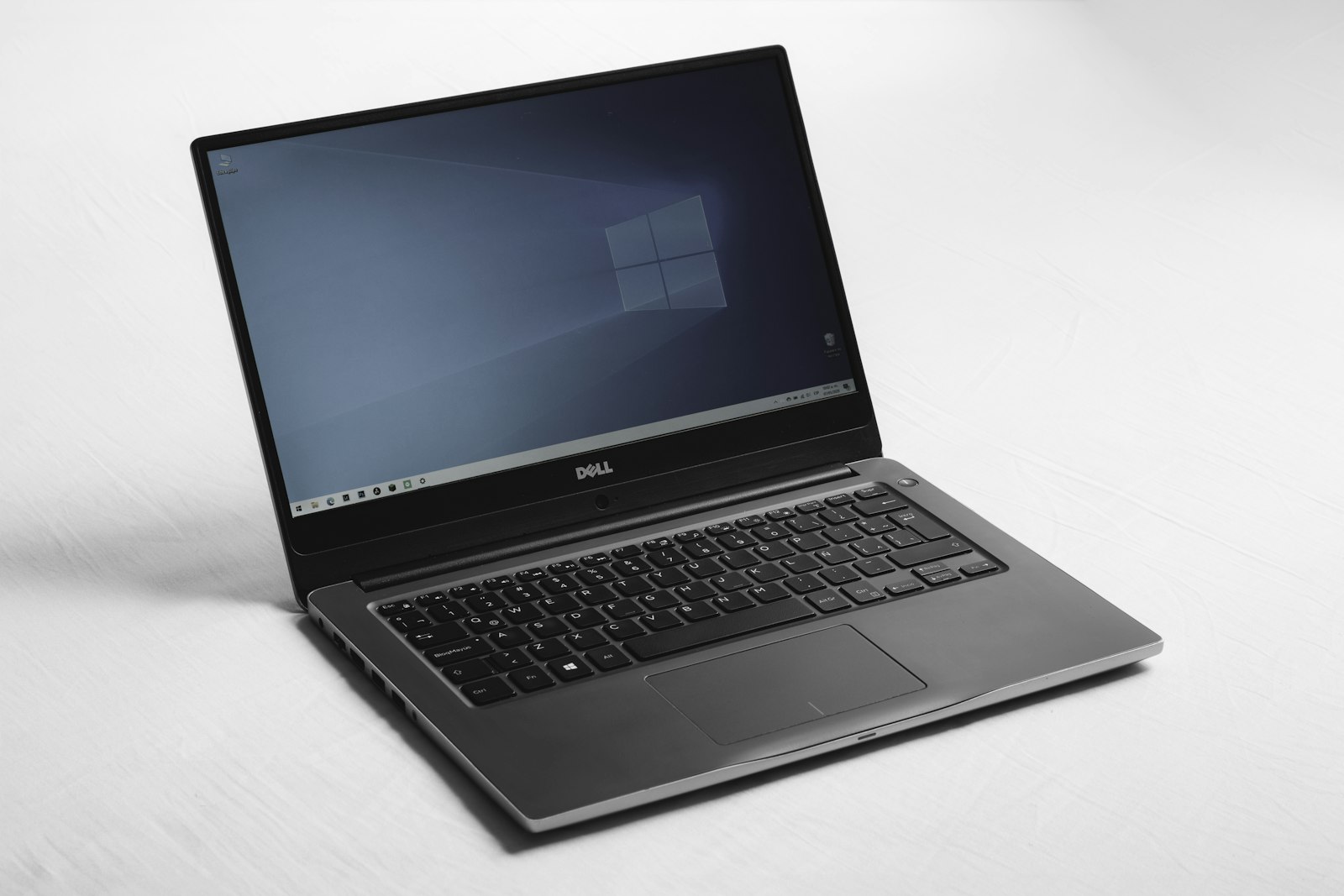
Watching IPTV on Windows is one of the most flexible setups you can have. A laptop is perfect for travel, a desktop is great for multi-monitor viewing, and a Windows mini PC can even become a dedicated living-room IPTV device.
In this guide, you’ll learn how to set up World Media Server on Windows 10/11, which apps work best, how to load EPG (programme guide), and how to troubleshoot the most common playback and login issues.
What You’ll Need
- A Windows 10 or Windows 11 PC
- A stable internet connection (Ethernet or strong 5GHz Wi‑Fi)
- Your World Media Server details (from your welcome email):
- Server URL / Portal URL
- Username
- Password
- Optional: M3U playlist URL + EPG (XMLTV) URL
If you don’t have credentials yet, you can request a free 24-hour test account and follow along with the trial details.
Best IPTV Apps for Windows (2026)
Windows has a few good IPTV player options. The “best” one depends on whether you want a full IPTV interface (EPG, favourites, categories) or you just want quick playback.
| App | Best for | Notes |
|---|---|---|
| IPTV Smarters (Windows) | Most users | Typically supports Xtream Codes + EPG and feels like a TV interface |
| MyIPTV Player (Microsoft Store) | Simple EPG + channel list | Works well with M3U/EPG, easy to install |
| VLC Media Player | Fast playback | Great for testing streams quickly; limited IPTV/EPG features |
| Kodi (Advanced) | Highly custom setup | Powerful but slower to configure |
Tip: If you also watch on a TV device, keep your login method consistent across devices. You can follow our setup guides for Amazon Fire Stick, Android TV / Google TV, and Apple TV.
Setup Method 1 (Recommended): Xtream Codes Login
Xtream Codes is usually the easiest setup on Windows because you don’t need to manage long playlist URLs. It is also easier to re-login if you reinstall Windows or switch devices.
- Install an IPTV app on Windows that supports Xtream Codes API (for example, IPTV Smarters).
- Open the app and choose Add User (or Add Profile).
- Select Login with Xtream Codes API.
- Enter your World Media Server details:
- Any Name: World Media Server
- Username: (from your welcome email)
- Password: (from your welcome email)
- Server URL / Portal URL: (from your welcome email)
- Save and let the app load channels and EPG (this can take a few minutes on first run).
If EPG looks empty right away, don’t worry — many IPTV apps need 15–30 minutes to populate guide data the first time.
Setup Method 2: M3U Playlist + EPG (XMLTV)
If your IPTV app doesn’t support Xtream Codes (or you prefer playlists), you can use M3U + EPG.
Option A: MyIPTV Player (Easy)
- Install MyIPTV Player from the Microsoft Store.
- Open the app and go to Settings.
- Add a new playlist using your M3U URL (Remote channel list).
- Add your EPG (XMLTV) URL in the EPG section (if provided).
- Save, return to channels, and refresh.
Option B: VLC (Fastest for Testing)
VLC is ideal for quick testing, but it is not a full IPTV interface:
- Open VLC
- Go to Media → Open Network Stream
- Paste your M3U URL
- Click Play
If your goal is “TV-like” browsing with EPG and favourites, a dedicated IPTV app will feel better than VLC.
Windows IPTV Performance Tips
Most buffering problems are caused by Wi‑Fi strength, background downloads, or peak-time congestion.
- Prefer Ethernet when possible (especially for 4K)
- If using Wi‑Fi, use 5GHz and keep the PC close to the router/mesh node
- Close heavy background traffic (cloud sync, game downloads, Windows updates)
- If one app stutters, test another (players handle codecs differently)
If you’re building a “living room PC” setup, you may find it easier to use a dedicated TV device instead. Our tutorial guides cover the most common IPTV devices.
Troubleshooting: Common Windows IPTV Problems
Buffering or Freezing Streams
Try these fixes in order:
- Switch from Wi‑Fi to Ethernet (or move closer to the router)
- Restart the IPTV app (and your PC if needed)
- Test a different channel or stream quality (HD instead of 4K)
- Test at a different time (peak hours can be busier)
- Try a different IPTV player app on Windows
Login / Playlist Errors
Most failures are simple copy issues:
- Double-check the server URL, username, and password
- Remove extra spaces when copying/pasting
- If using M3U, confirm the URL is still valid and not expired
EPG Not Loading
EPG data often needs time to sync:
- Wait 15–30 minutes after first setup
- Manually refresh EPG inside the IPTV app settings
- Confirm you used the EPG / XMLTV URL (not the M3U link)
No Audio or Wrong Audio Track
Some channels provide multiple audio tracks:
- Switch audio track inside the IPTV player
- Test another channel to confirm it isn’t a channel-specific issue
Ready to Start Streaming?
If you want the fastest way to test IPTV on Windows, start with a free trial and use Xtream Codes for setup. You can request your free 24-hour test account here and be watching in minutes.