

Setup Steps
Step 1: Download STB Emulator
Download and install STB Emulator from the Google Play Store or sideload the APK on your Android device.
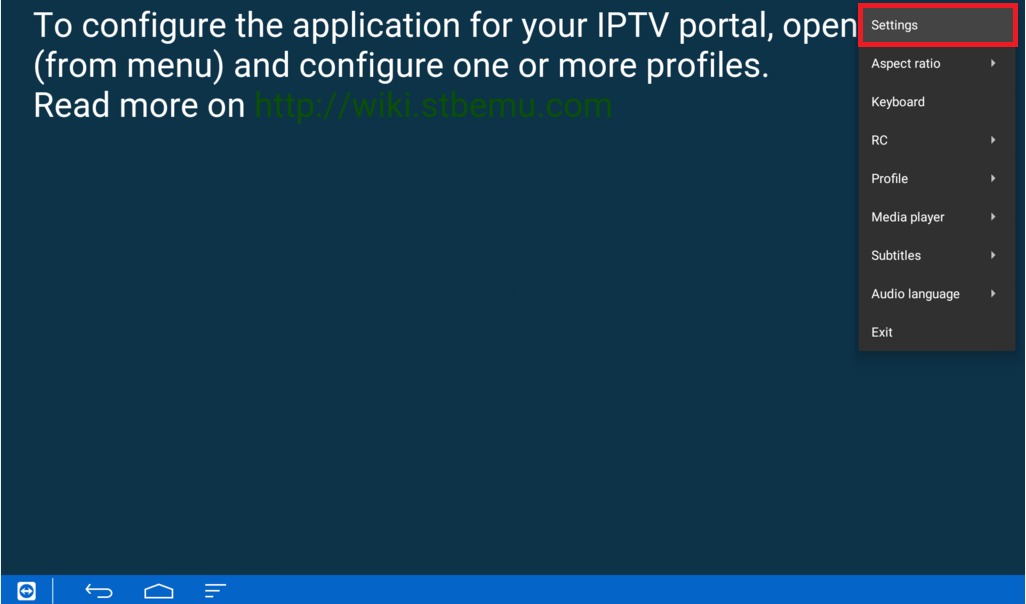
Step 2: Open the App
Launch STB Emulator. On first run, you’ll see a portal configuration screen.
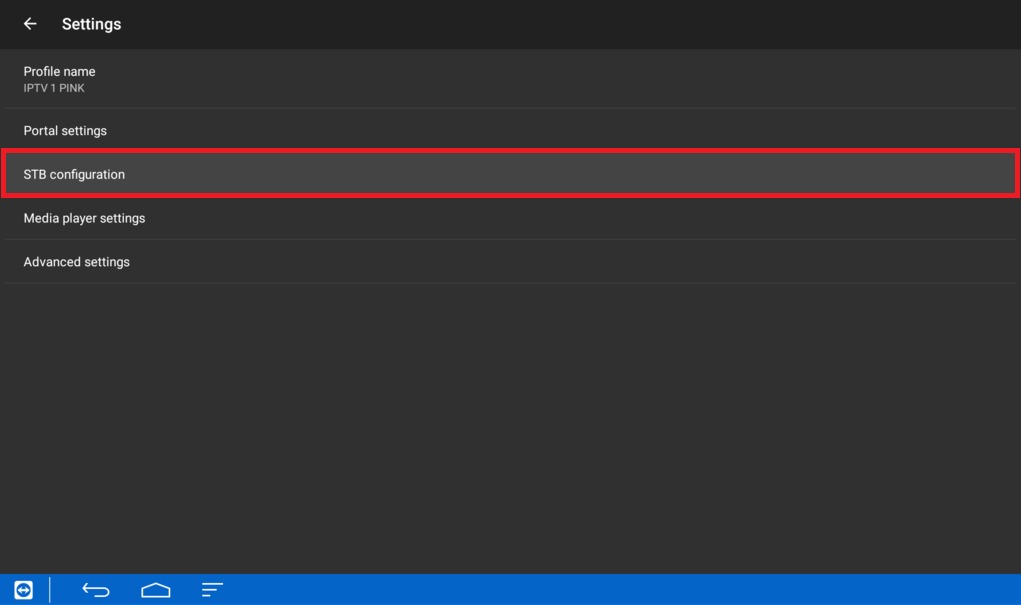
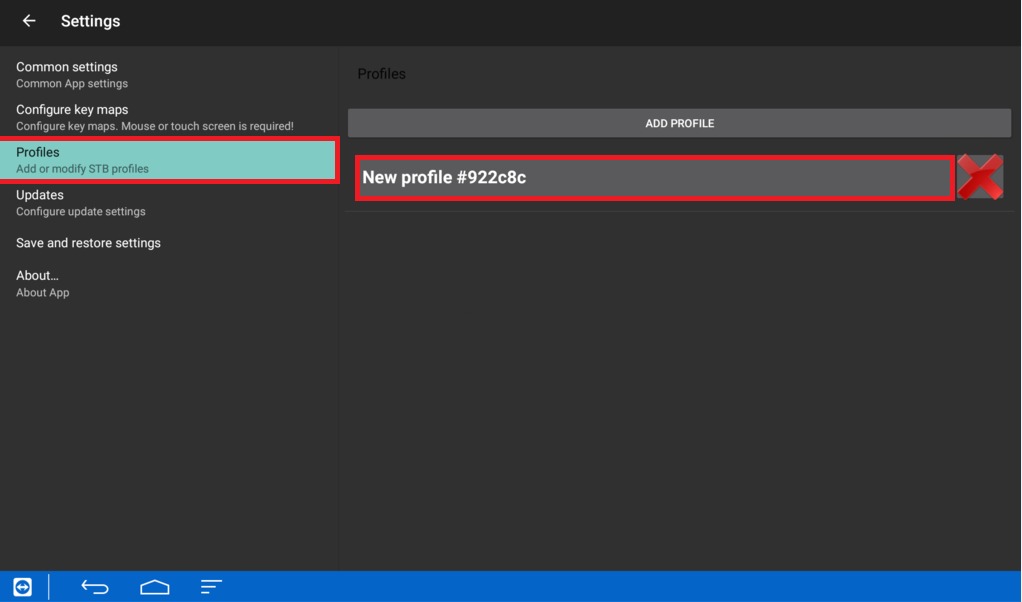
Step 3: Add New Portal
Tap on Add Portal or access settings by pressing the menu button on your remote.
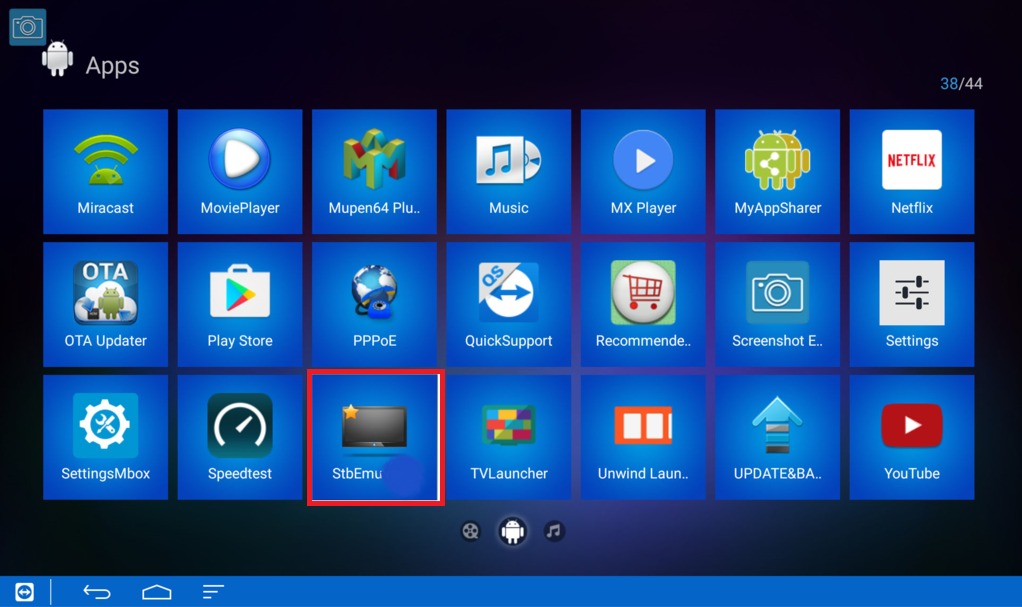
Step 4: Configure Portal
Enter “World Media Server” as the portal name and paste the portal URL from your welcome email.
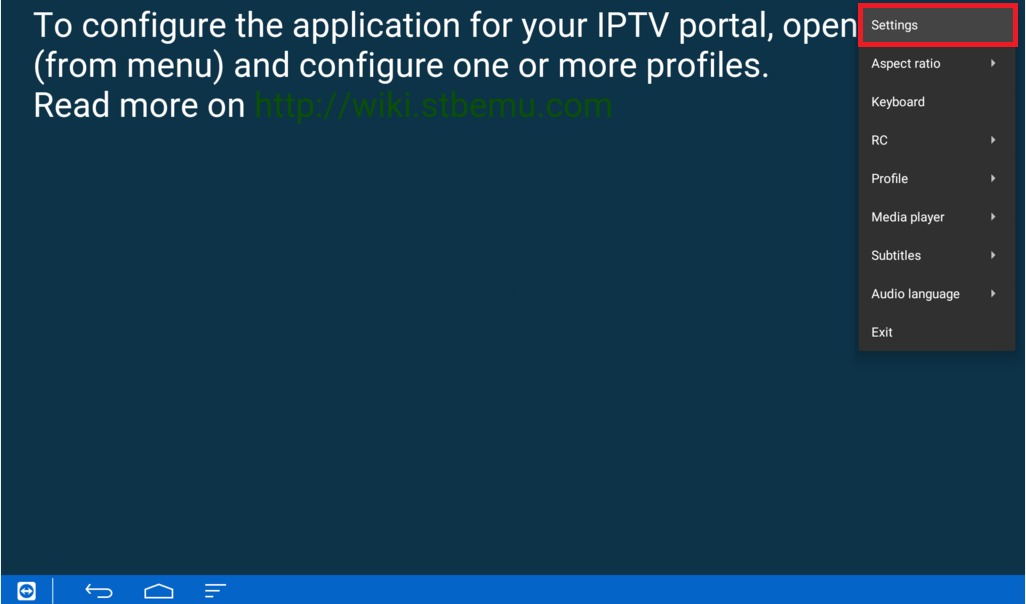
Step 5: Save and Connect
Save the settings and select the portal. The app will connect and load your channel list.
Tips
- Use the Pro version for additional features and better performance
- The MAC address is generated by the app — provide this when contacting support
- STB Emulator mimics the MAG portal interface exactly
- Supports multiple portals — you can switch between them easily